Start a scanner service.
In low lunar orbit, start the surface scanner like a Linux service, then begin mapping. The instrument needs power throughout the scan.
systemctl start scanner
scanLibreCosmos OS / independent expeditions
Join the community of free space researchers in the world of LibreCosmos. You operate automated ships from Earth, connected to their instruments and services through LibreCosmos OS.
A free hobby space simulation in the spirit of free software: small expeditions, shared repair designs, and observations that help the next researcher.
Made for a keyboard and a larger screen: on a phone, bookmark this page and play on a computer.
Free hobby project · Version 0.4.1
Independent expeditions. Earth & Moon.
Shared tools. LibreCosmos OS.
Research records. Files, wiki & mail.
Working in LibreCosmos OS
Linux-style tools connect you to the ship’s instruments, research files and running services.
In low lunar orbit, start the surface scanner like a Linux service, then begin mapping. The instrument needs power throughout the scan.
systemctl start scanner
scanAnalyze a sample collected by a probe, then copy the lab report and raw spectra to Tsiolkovsky station over the ansible link.
scp lab-sample-moon.* tsiolkovsky:Use top to watch running services, jobs and power consumption. Switch to sysinfo for the ship’s battery, fuel, cargo and installed modules.
top
sysinfo
Your working environment
>_ TUI / Terminal
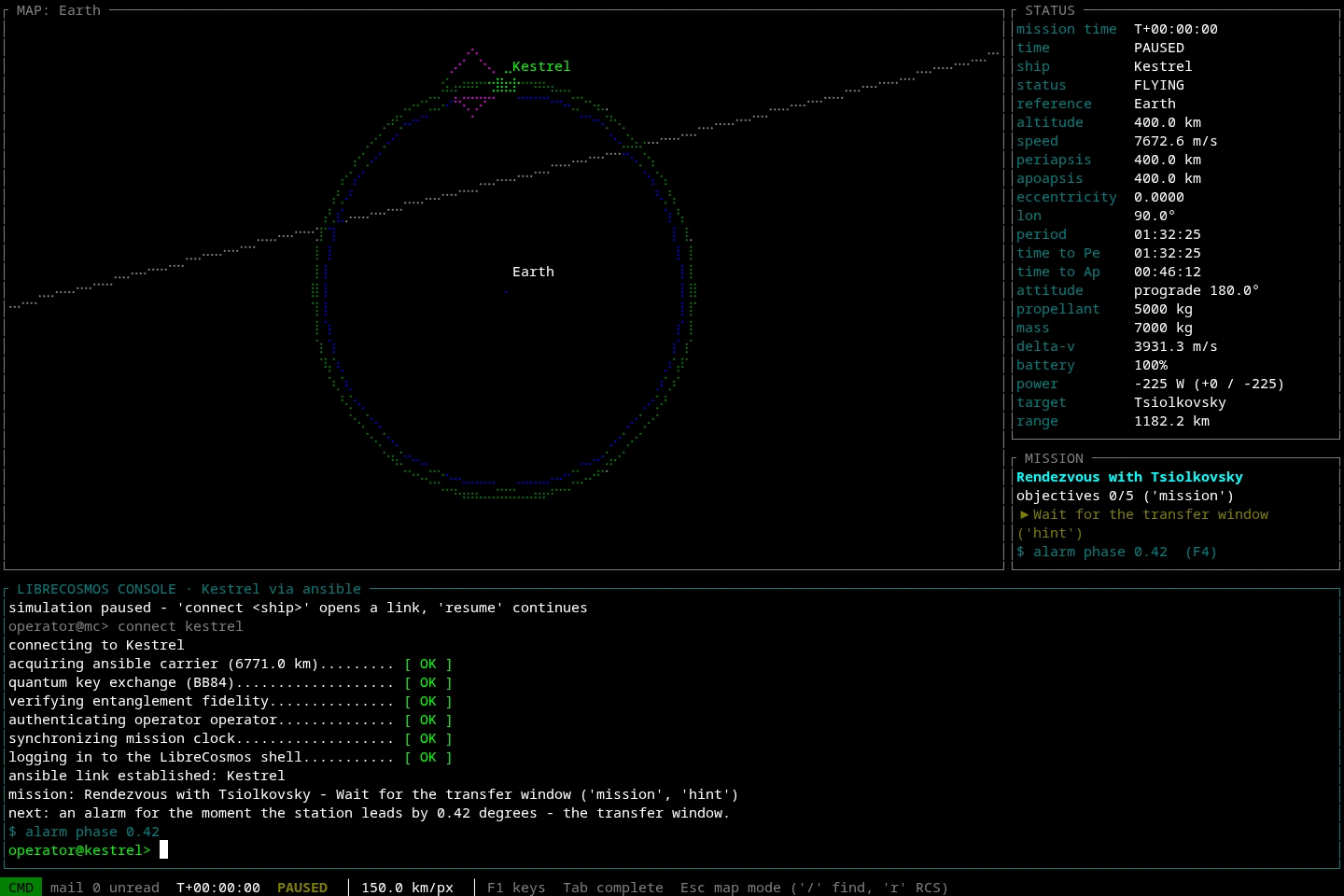
A keyboard-first environment for people who live in the terminal: a braille orbital map, direct commands, jobs, services, files and dedicated RCS controls for docking.
The mission guide is there too. Familiar Linux habits have a place in this spacecraft’s working environment.
Open the terminal◎ GUI / Graphical
A wireframe map, live ship status, tool panels, an inbox and a flight planner. Use the panels, type commands, or move between both as you work.
Actions are recorded in the console. The orbital mechanics, missions and spacecraft systems are the same in both interfaces.
Open the graphical consoleBoth interfaces share the same operators and campaigns in this browser. Switch with ui gui or ui tui whenever you like.
Support the real project
Outside the simulation, LibreCosmos is a free hobby game. Useful feedback, careful reports and sharing the project all help. If you would like to support further development, you can buy the developer a coffee.
Entirely optional. The game stays free.
First connection
Both interfaces have the same mission guide. Your first assignment explains the commands and the orbital maneuvers as you use them.
mc> useradd operator
mc> connect kestrel
kestrel> target tsiolkovsky
# Continue with the mission guide.
useradd <name>, then name your first ship. Enter keeps Kestrel.connect kestrel to open its ansible link and receive your briefing.hint repeats the next step. man start explains the basics. Tab completes commands.Development notes
Flight planning, fleet controls, a mission inbox, instrument viewers and wiki notes from the LibreCosmos Dispatch.
Read the update